Linux & Environment / 5 menit baca
Faceplate
I just released Faceplate v1.0.0, a small GNOME Shell extension that adds a personal profile menu to the top panel.
Repository: github.com/muhamadsyafii/faceplate-gnome-shell-extension
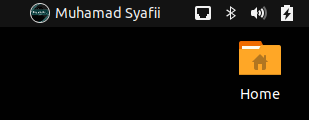
Faceplate started from a simple idea: I wanted a compact place in the GNOME panel that shows my avatar and display name, then opens a small personal menu with system status, useful shortcuts, and session actions.
It does not replace the default GNOME or Ubuntu system menu. Faceplate is designed as a separate, lightweight companion menu that feels personal while still following the GNOME Shell style.
Why I Built Faceplate
When using GNOME every day, especially for development work, I often open the same tools repeatedly: Terminal, Files, System Monitor, Settings, and a few session actions like Lock Screen or Log Out.
At the same time, I also wanted a quick way to glance at simple system information without opening another app.
That is where Faceplate comes in:
- it shows your avatar and display name in the top panel
- it opens a dedicated personal menu when clicked
- it provides quick system status
- it gives fast access to commonly used apps
- it keeps the visual style close to GNOME Shell
Main Features
Faceplate v1.0.0 includes:
- 👤 Circular avatar in the GNOME top panel
- 🏷️ Display name next to the avatar
- 🖼️ Larger avatar inside the Faceplate menu
- 📊 Realtime system status while the menu is open
- ⚡ Quick app shortcuts
- ⏱️ App Usage tracking for the current session
- ⚙️ Preferences for layout and behavior
- 🔒 Session actions such as Lock Screen and Log Out
- ℹ️ About Faceplate dialog with creator and repository links
Preview
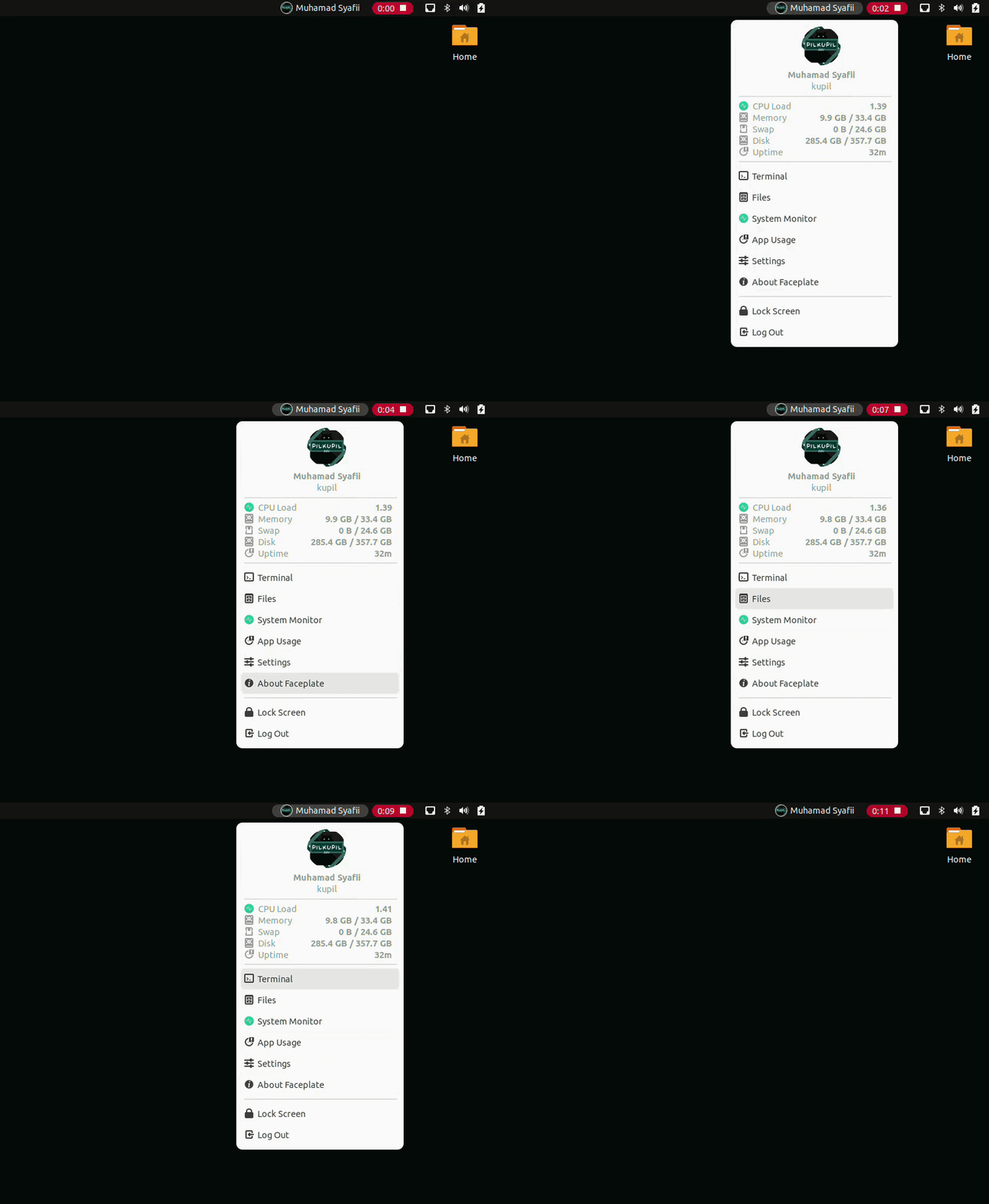
In the top panel, Faceplate appears as a small profile item with your avatar and display name.
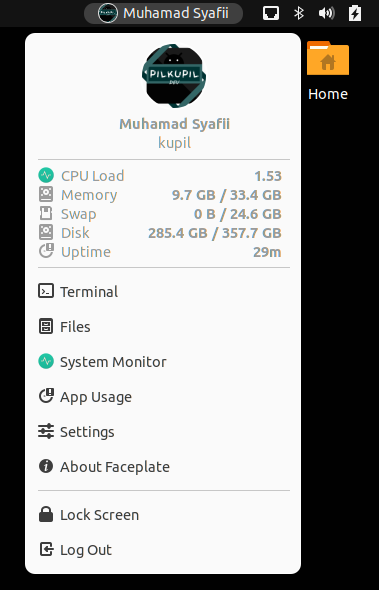
Clicking it opens the Faceplate menu with profile information, system status, app shortcuts, and session actions.
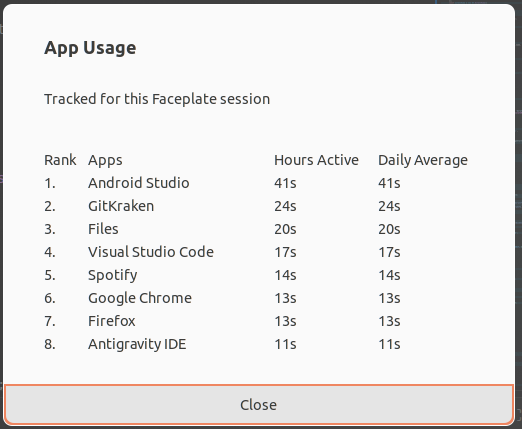
Faceplate also includes an App Usage dialog, which shows a ranked list of active applications for the current Faceplate session.
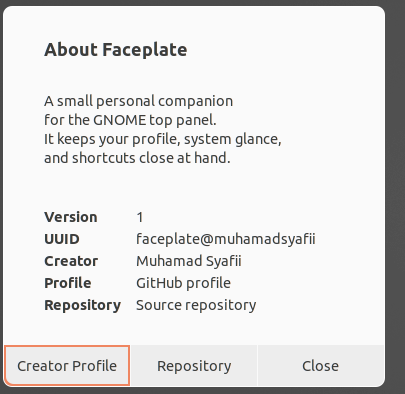
The About dialog provides a small summary of the extension, along with creator and repository links.
Here is the animated preview:
System Status
Faceplate shows a simple system status section inside the menu:
- CPU Load
- Memory
- Swap
- Disk
- Uptime
The values are refreshed while the menu is open. This keeps the feature useful without making the extension too busy when the menu is not being used.
App Usage
One of the features included in v1.0.0 is App Usage.
It shows a simple ranked list of focused applications during the current Faceplate session. For example:
Rank  Apps                Hours Active   Daily Average
1.    Google Chrome       1h 3m          3m
2.    Visual Studio Code  42m            2m
For this first release, App Usage is intentionally session-based:
- tracking starts when Faceplate is enabled
- tracking is based on the currently focused window
- usage data is stored in memory only
- usage data resets when GNOME Shell or the extension restarts
I kept it this way to make the feature lightweight, simple, and privacy-friendly for the first release.
Preferences
Faceplate includes a preferences window with several options:
- Layout Horizontal: show the avatar and display name side by side or stacked vertically
- Default Click Action: open the Faceplate menu or directly run a command
- Launch Command: choose a preset command
- Custom Command: use your own command when the custom option is selected
- Custom Avatar Path: use a local image file as your avatar
If the custom avatar path is empty or invalid, Faceplate uses the GNOME account avatar. If no account avatar is available, it falls back to GNOME's default symbolic avatar icon.
Compatibility
Faceplate v1.0.0 supports:
- GNOME Shell 42
- GNOME Shell 43
- GNOME Shell 44
GNOME Shell 45 and newer use a different extension API, so this first release does not support GNOME Shell 45+ yet.
Installation
Once Faceplate is available on the GNOME Extensions website, it can be installed from:
https://extensions.gnome.orgSearch for Faceplate, then enable the extension from the website.
You can also install it manually from the ZIP release:
gnome-extensions install faceplate@muhamadsyafii.shell-extension.zip
gnome-extensions enable faceplate@muhamadsyafii
If you are using Wayland, log out and log back in after installing. If you are using X11, you can reload GNOME Shell by pressing Alt + F2, typing r, and pressing Enter.
Source Code
The source code is available on GitHub:
https://github.com/muhamadsyafii/faceplate-gnome-shell-extensionThis release is the first step toward making Faceplate stable, useful, and pleasant to use as a small daily GNOME companion.
Closing
Faceplate v1.0.0 is still simple, but it already covers the main use case I wanted: a small profile item in the panel, quick system status, useful shortcuts, and a personal touch for the GNOME desktop.
For future releases, I want to keep Faceplate lightweight and focused. New features may come later, but the goal will stay the same: personal, quick, and natural inside GNOME Shell.
Enjoy Faceplate.